Terminal
Access a full-featured integrated terminal for command execution, shell operations, and development tool management within your Lenify workspace.
Integrated Terminal Features
Professional Terminal Component
Lenify's integrated terminal provides complete shell access with xterm.js-based terminal emulation and secure command execution.
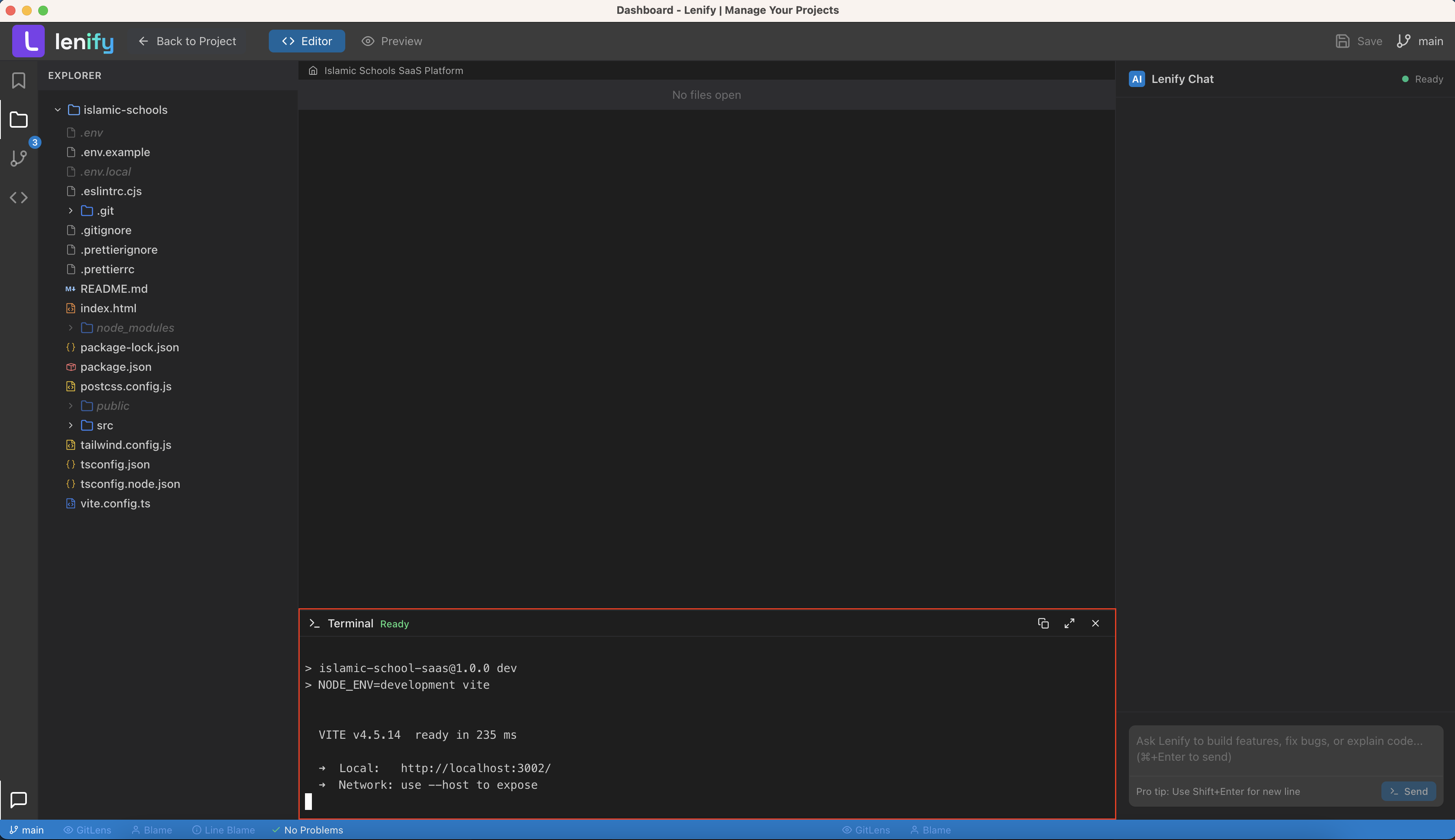 Professional terminal component with VS Code-style theming, command history, and secure command execution
Core Terminal Capabilities:
- xterm.js Terminal: Full terminal emulation using xterm.js library with VS Code dark theme
- Secure Command Execution: All commands executed through secure ElectronAPI bridge
- Command History: Persistent command history with up/down arrow navigation (100 command limit)
- Error Detection: Automatic error pattern detection for common development tools
- Working Directory Sync: Terminal syncs with current project workspace directory
- Process Management: Background process handling and session cleanup
Terminal Session Management
Single Terminal Instance:
- Session Tracking: Each command execution creates a tracked session ID
- Background Process Support: Long-running processes (servers, watchers) run in background
- Process Termination: Ctrl+C support for interrupting running commands
- Session Cleanup: Automatic cleanup of completed processes and memory management
- View Switch Handling: Proper process cleanup when switching between IDE views
Command Execution and Security
Secure Command Execution
Built-in Security Controls:
- Command Validation: All commands validated through ShellExecutionService security layer
- Safe Command Whitelist: Approved development tools (npm, git, node, python, etc.)
- Environment Variable Protection: Secure environment variable handling
- Path Resolution: Safe command path resolution with validation
- Process Isolation: Commands executed in isolated processes with proper cleanup
Supported Development Tools:
- Node.js Ecosystem: npm, yarn, pnpm commands with full functionality
- Git Integration: All git commands with proper workspace context
- Python Development: pip, python script execution, virtual environment support
- Build Tools: Support for webpack, vite, and other JavaScript build tools
- Version Managers: nvm, nvs support for Node.js version management
Intelligent Error Detection
Real-Time Error Recognition:
- Build Tool Errors: Automatic detection of webpack, vite, and compilation errors
- Package Manager Issues: npm, yarn, pnpm error pattern recognition
- Runtime Errors: JavaScript runtime error detection and highlighting
- Git Operation Errors: Git command failure detection and reporting
- AI Error Analysis: Detected errors can be sent for AI-powered debugging assistance
Terminal Appearance and Configuration
VS Code-Style Theming
Visual Design:
- VS Code Dark Theme: Integrated VS Code-style dark theme with proper color scheme
- ANSI Color Support: Full ANSI color code support for command output
- Styled Terminal Prompt: Custom iTerm-style prompt with path and project information
- Automatic Resizing: FitAddon integration for proper terminal sizing
- Responsive Design: Terminal automatically adjusts to container size changes
Terminal Display Features:
- Working Directory Display: Current working directory shown in terminal prompt
- Project Context: Project name displayed in terminal title and prompt
- Color-Coded Output: Error detection with red error highlighting
- Cursor Management: Proper cursor positioning and movement handling
- Text Selection: Mouse selection support for copying terminal output
Development Workflow Integration
Project Context Awareness
Workspace Integration:
- Automatic Directory Navigation: Terminal starts in current project workspace directory
- Project Detection: Automatic detection of project type for appropriate command suggestions
- Working Directory Sync: Real-time synchronization with IDE workspace changes
- Environment Context: Proper environment variable setup for project development
- Path Management: Enhanced PATH resolution for Node.js and development tools
Error Detection and AI Assistance:
- Automatic Error Detection: Real-time scanning of terminal output for error patterns
- Error Pattern Recognition: Recognition of common development errors across tools
- AI Integration: Detected errors can be sent to AI assistant for debugging help
- Error Context: Command context provided with error details for better diagnosis
- User-Controlled AI Fixes: AI assistance available on demand, not automatic
Continue to Browser Preview to learn about live development previews, or explore File Explorer for project file management.