Sign In to Lenify
Access your Lenify account through the desktop application or web browser.
Desktop Application Sign-In
Launch and Authentication
-
Launch Lenify: Open the Lenify application from your desktop or applications folder
-
Sign-In Interface: You'll see a clean authentication screen featuring:
- Email address field: Enter your registered email
- Password field: Enter your account password
- "Forgot Password?" link: Reset password if needed
-
Enter Credentials: Use the same email and password from your account registration
-
Account Activation Check: If your account isn't activated, you'll be redirected to Activate Account screen
-
Authentication: System validates credentials and redirects to dashboard
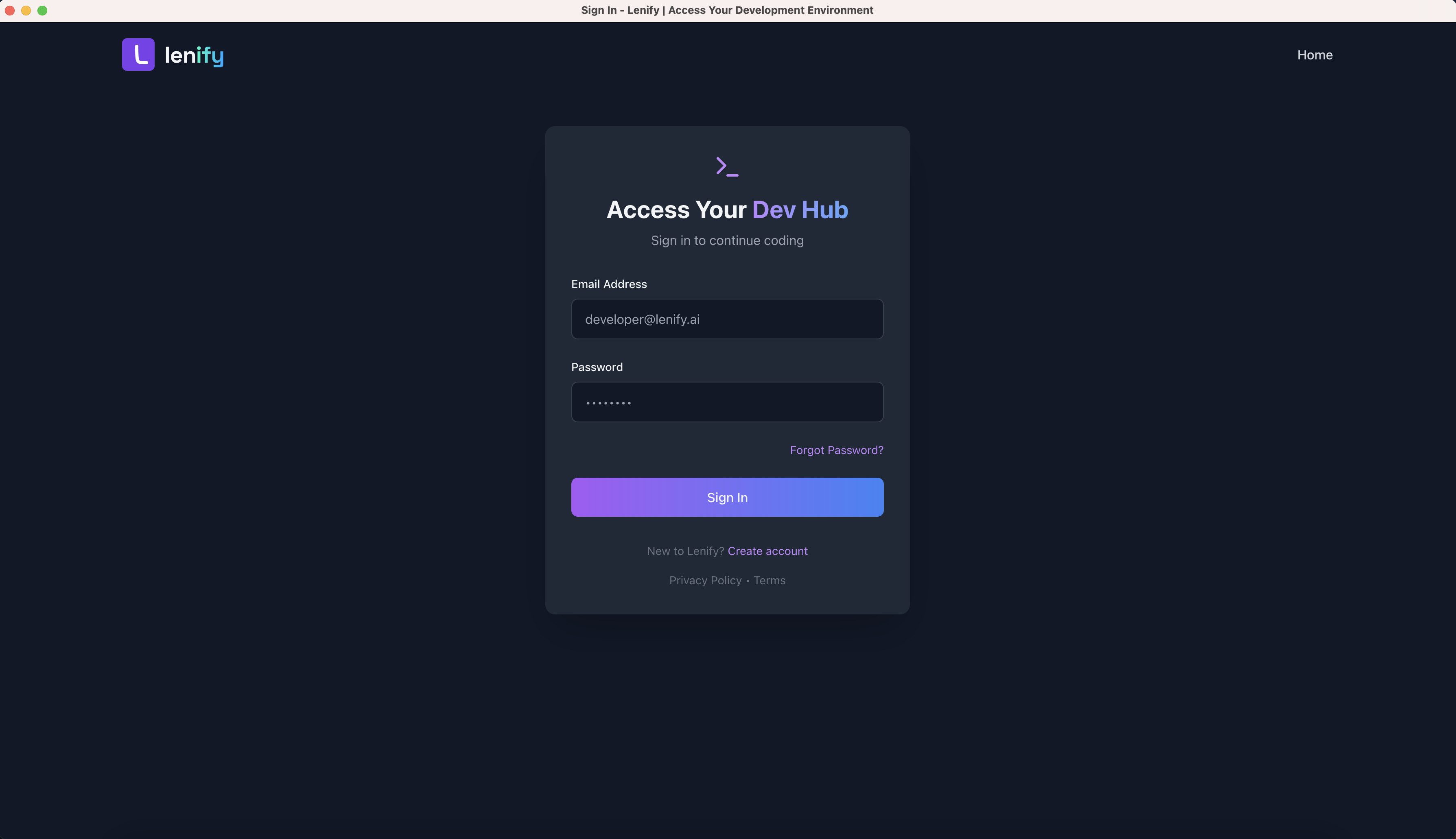 Clean and secure sign-in interface with email and password authentication
Authentication Process
- Credential Validation: Secure verification of email and password
- Session Creation: Establishes authenticated session for platform access
- Dashboard Redirect: Automatic navigation to your personalized dashboard
- Error Handling: Clear messages for incorrect credentials or activation issues
Web Browser Access
Browser Sign-In
Alternatively, access Lenify through your web browser:
- Visit Platform: Go to lenify.ai
- Sign In: Click "Sign In" button and enter your credentials
- Browser Compatibility: Supports Chrome, Firefox, Safari, and Edge
- Session Management: Automatic session persistence across browser sessions
Browser Features
- Cross-Platform: Works on any device with a modern browser
- Session Persistence: Stay logged in across browser sessions
- Responsive Design: Optimized for desktop and tablet interfaces
- Secure Connection: HTTPS encryption for all authentication
Account Activation
If Account Not Activated
If your account hasn't been activated yet:
- Check Email: Look for activation email in inbox (check spam folder)
- Activation Link: Click the verification link in the email
- Link Expiry: Activation links expire after 24 hours
- Resend Option: Request new activation email if needed
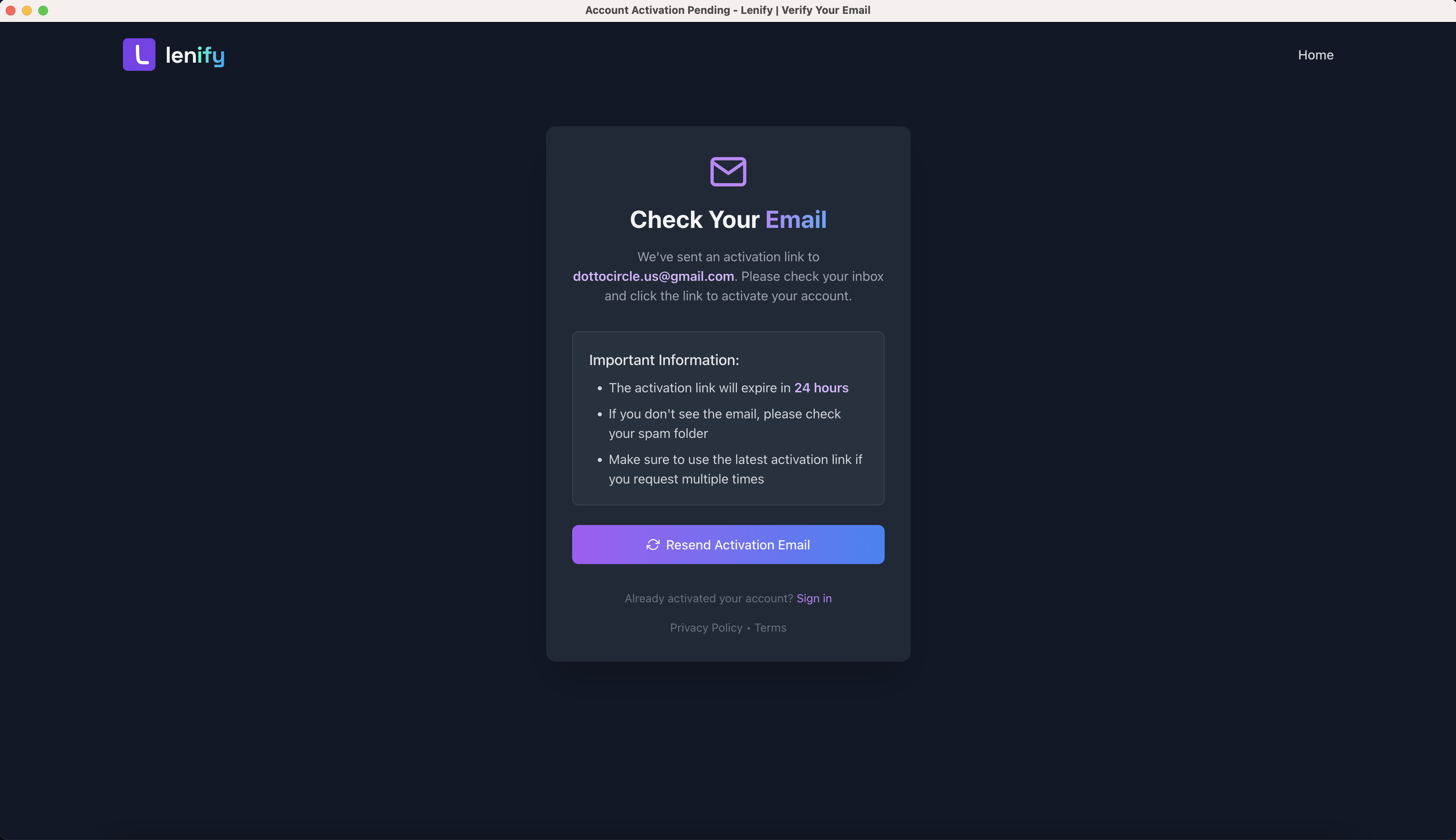 Account activation interface showing activation pending status with email verification instructions
Activation Troubleshooting
- Email Not Received: Check spam/junk folders
- Link Expired: Request new activation email
- Multiple Attempts: Contact support if issues persist
- Browser Issues: Try different browser or clear cache
Security Features
Authentication Security
- Encrypted Transmission: All login data encrypted in transit
- Secure Sessions: Protected session management
- Password Security: Strong password requirements enforced
- Account Protection: Automatic lockout after failed attempts
Session Management
- Automatic Timeout: Sessions expire after period of inactivity
- Multi-Device: Sign in from multiple devices simultaneously
- Sign Out: Secure logout from all devices option
Troubleshooting
Common Sign-In Issues
- Incorrect Password: Use password reset if forgotten
- Account Not Activated: Complete email verification process
- Network Issues: Check internet connection
- Browser Problems: Clear cache and cookies
Getting Help
- Forgot Password: Use password reset link on sign-in page
- Account Issues: Contact support with account email
- Technical Problems: Check status page for known issues
- General Support: Visit help center for additional assistance
Continue to Subscription Plans after successful sign-in to set up your billing.