IDE Interface Overview
Explore Lenify's professional IDE built on Monaco Editor (VS Code engine) with comprehensive development tools and blueprint-driven features.
IDE Layout Overview
Lenify's IDE follows VS Code's familiar layout with a modern twist, providing a complete development environment organized into distinct areas:
- Activity Bar (Left): 6 main development panels for navigation and tools
- Sidebar (Left-Center): Dynamic content area that changes based on selected activity bar panel
- Main Editor Area (Center): Monaco Editor with VS Code engine for code editing
- Terminal (Bottom): Integrated XTerm terminal with VS Code theming
- Chat Interface (Right): Optional AI assistant panel for development help
- Status Bar (Bottom): Git information, problems, file details, and GitLens controls
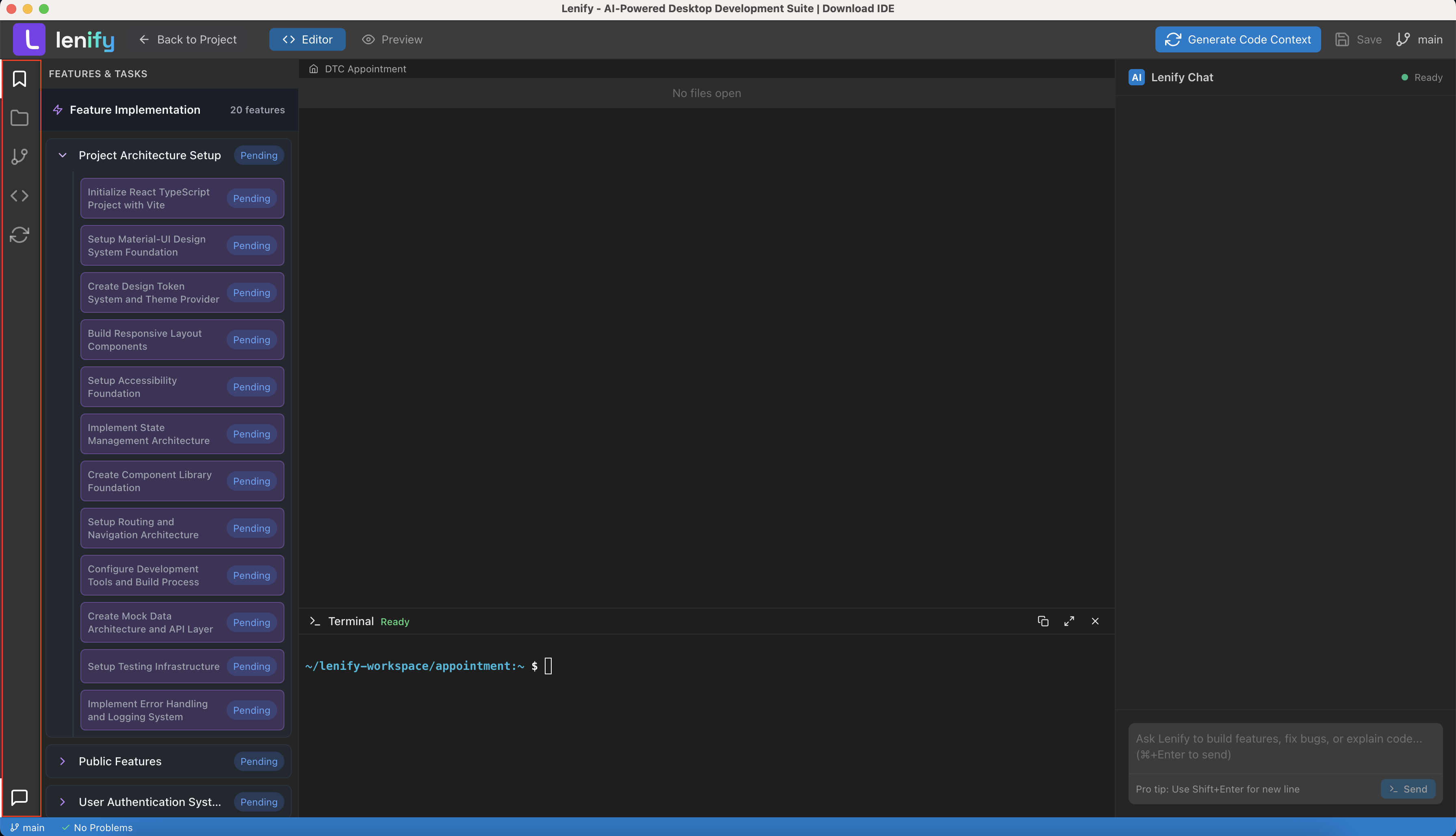 Complete IDE layout with activity bar, sidebar, Monaco Editor, terminal, and AI chat interface
Activity Bar & Sidebar Panels
The activity bar provides quick access to 6 essential development panels. Click any panel to view its content in the adjacent sidebar:
1. Features & Tasks Panel (FiBookmark)
Blueprint Integration:
- Expandable Feature List: Features directly from your project blueprint with collapsible sections
- Task Status Tracking: Visual badges for accepted (green), rejected (red), pending (yellow), and default (blue) states
- Task Management: Click tasks to navigate and interact with project features
- Real-Time Updates: Automatic synchronization with blueprint changes and loading states
- Animated Interactions: Smooth expand/collapse animations using Framer Motion
2. File Explorer Panel (FiFolder)
Project Navigation:
- Hierarchical File Tree: Complete project structure with expandable folders
- File Selection: Click to select and open files in the Monaco Editor
- Context Menu Support: Right-click functionality for file operations
- Folder Management: Toggle folder expansion/collapse for better navigation
- VS Code Styling: Consistent styling with VS Code sidebar theme variables
3. Source Control Panel (FiGitBranch)
Git Integration:
- Change Tracking: Integration with git changes count through badge indicators
- File Selection: Click git files to open them in the editor
- Activity Bar Badge: Shows git changes count as a badge on the activity bar item
- Workspace Integration: Connected to workspaceRoot for proper git repository context
- Repository Context: Operates within the current workspace's git repository structure
4. Code Context Panel (FiCode)
Context Analysis:
- Code Context Display: View generated code context information through CodeContextViewer component
- File Tree Integration: Uses FileTree component for structured context navigation
- Context Selection: Select specific context files for detailed analysis
- Structured Display: Organized presentation of code context and dependencies
5. Generate Code Context Panel (FiRefreshCw)
AI-Powered Analysis:
- Context Generation Trigger: On-demand button to initiate code context generation
- Processing States: Loading indicators and disabled states during context generation
- Progress Feedback: Visual feedback through loading states and context generation status
- State Management: Proper handling of context generation loading states and completion
6. AI Assistant Panel (FiMessageSquare)
Chat Interface Integration:
- Panel Toggle: Click to show/hide the AI chat interface on the right side
- Conversational AI: Natural language interface for development assistance
- Real-Time Streaming: Live streaming responses with stream cancellation support
- Context Integration: AI understands your complete project structure for relevant suggestions
Monaco Code Editor (Center Area)
Professional Code Editing
The Monaco Editor provides industry-standard code editing capabilities in the main center area:
Core Features:
- VS Code Engine: Powered by the same Monaco Editor used in Visual Studio Code
- Syntax Highlighting: Monaco Editor's built-in syntax highlighting for multiple programming languages
- Multi-Cursor Support: Edit multiple locations simultaneously
- Code Folding: Collapse and expand code blocks for better navigation
- Search and Replace: Built-in find/replace functionality
- Diff Viewer: Side-by-side diff comparison for file changes with read-only mode
Layout Integration:
- Vertical Split: Uses React Split with vertical orientation dividing editor and terminal
- Resizable Panels: Drag split pane dividers to resize editor and terminal areas
- Automatic Layout: Responsive editor that adapts to panel resizing
- Theme Integration: Uses VS Code dark theme variables for consistent styling
- View Switching: Toggle between code editor and browser preview modes
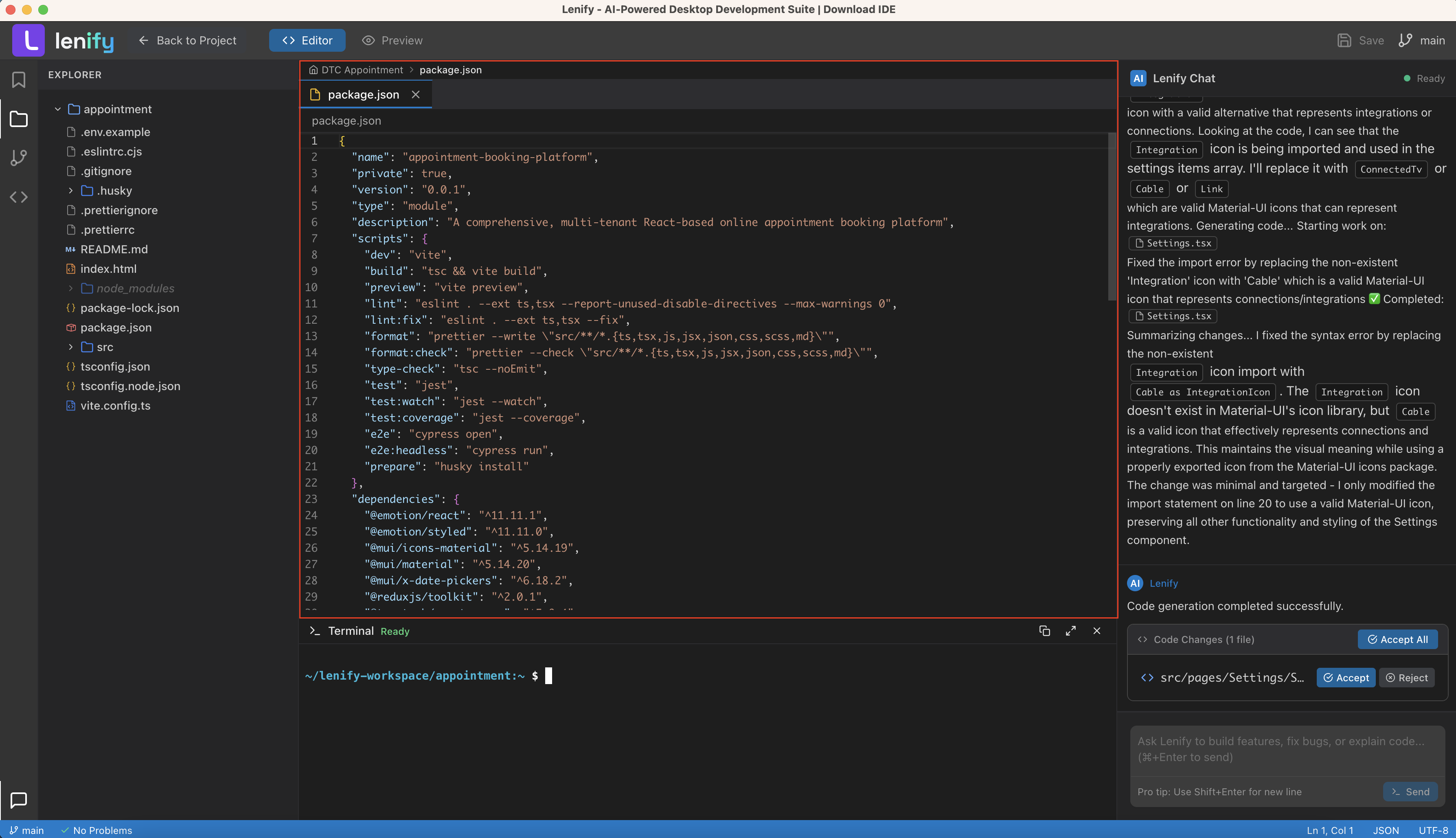 Professional code editor with VS Code engine, syntax highlighting, and advanced editing features
AI Chat Interface (Right Panel)
Conversational Development Partner
Chat Interface Features:
- Toggle Visibility: Click the AI Assistant activity bar button to show/hide the chat panel
- Real-Time Streaming: Live streaming AI responses with stream cancellation support
- Message History: Persistent conversation with complete development context
- Code Generation: Generate components, functions, and features from natural language
- Proposed Changes: Accept or reject AI-suggested code modifications
- Error Handling: Built-in error confirmation and cancellation dialogs
Advanced AI Capabilities:
- Context-Aware Help: AI understands your complete project structure and blueprint
- File Operations: Open files for code generation with direct editor integration
- Stream Control: Ability to cancel long-running AI operations mid-stream
- Loading States: Visual feedback during code generation and AI processing
- Copy & Insert: One-click code copying and direct insertion into active files
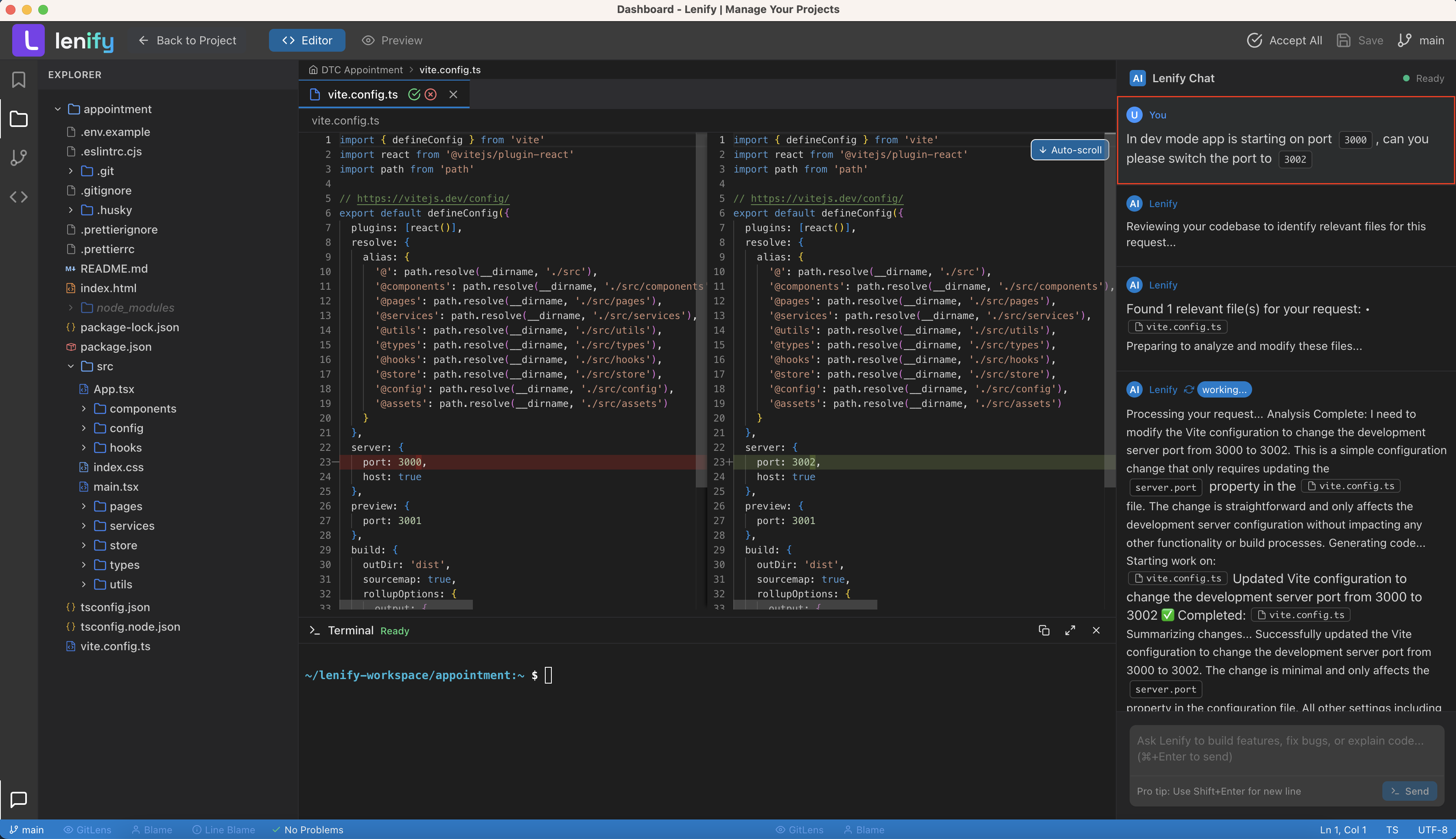 Powerful chat interface with real-time code generation, syntax highlighting, and context-aware assistance
Integrated Terminal (Bottom Panel)
Professional Terminal Integration
XTerm Terminal:
- Full Terminal Functionality: Complete terminal using XTerm.js library
- VS Code Theming: Consistent styling with VS Code terminal theme variables
- Project Integration: Terminal tied to specific projectId with workspace root context
- Initialization Status: Visual feedback during terminal setup and initialization
- Header Display: VS Code-style terminal header with title and status information
Terminal Features:
- Workspace Context: Automatically operates within the current project's workspace root
- Error Management: Built-in error handling with proper user feedback
- Status Tracking: Shows initialization progress and readiness states
- Lazy Loading: Terminal loads on demand with fallback component during loading
- Minimum Height: Maintains 100px minimum height for usability in split layout
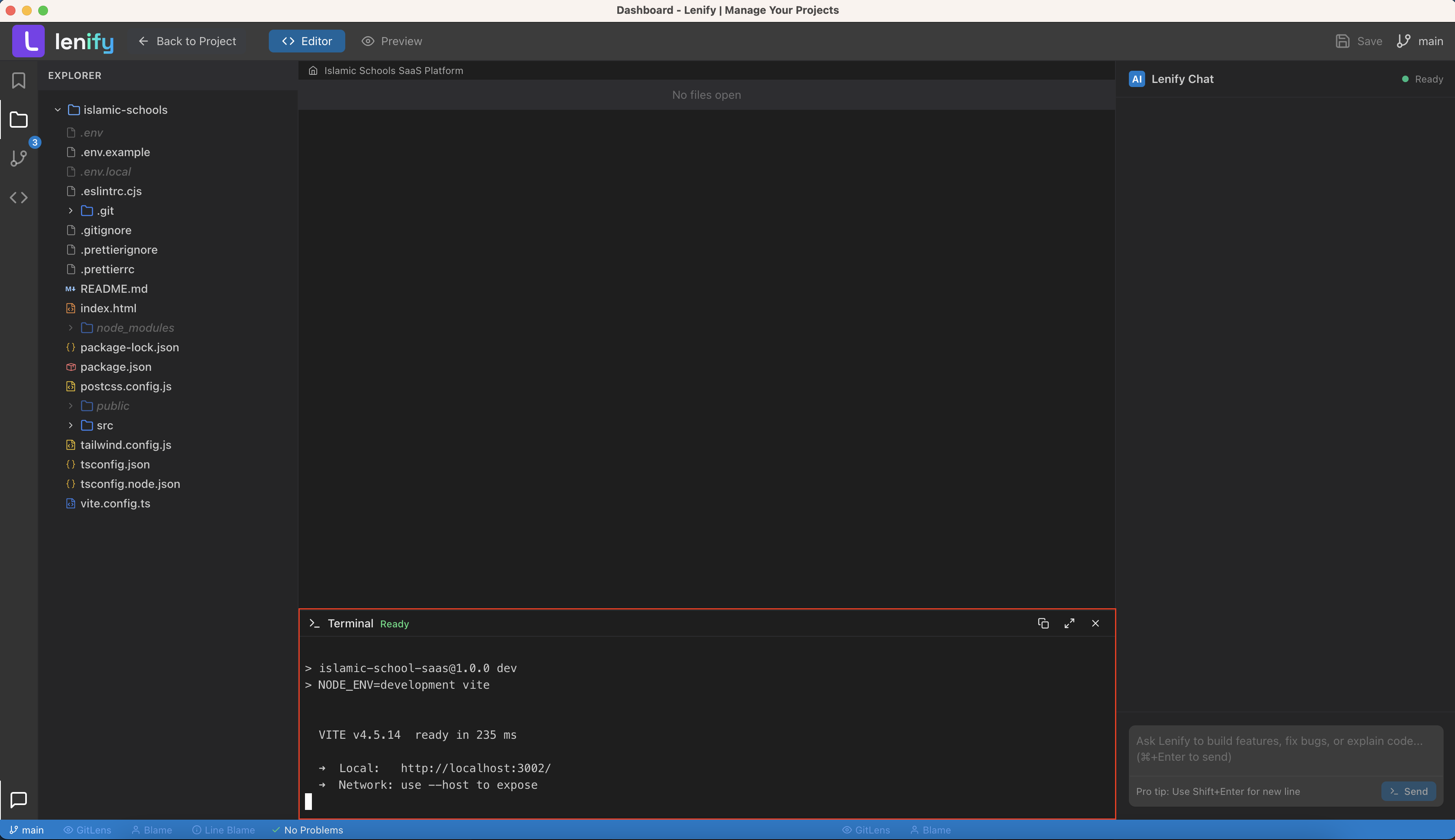 Professional terminal component with XTerm integration and VS Code theming
Browser Preview (Alternative View)
Live Application Preview
Modern Browser Preview:
- Full Screen Mode: Takes over the main content area when browser preview is active
- View Switching: Toggle between code editor and browser preview modes
- Component Loading: Async loading with proper fallback handling during initialization
- Lazy Loading: Browser preview loads on demand with LazyLoadingFallback component
Preview Integration:
- Alternative Layout: Replaces the Monaco Editor when preview mode is active
- Seamless Switching: Quick toggle between development and preview modes
- Modern Component: Dedicated ModernBrowserPreview component for application testing
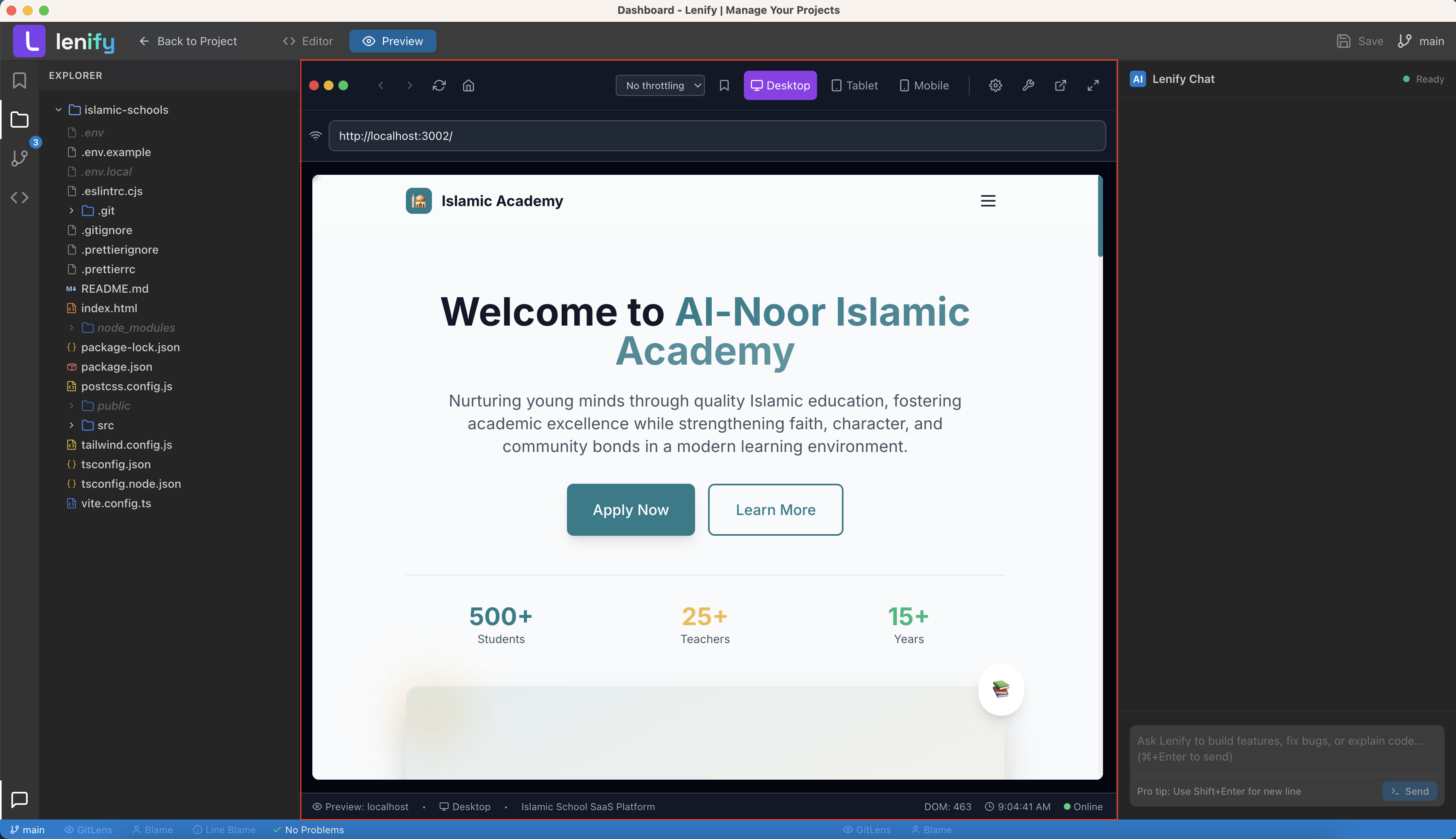 Modern browser preview with seamless switching from code editor
Status Bar & GitLens (Bottom)
Professional Status Information
Status Display:
- Git Branch: Current git branch with FiGitBranch icon
- Problem Indicators: Error and warning counts with FiAlertCircle and FiInfo icons
- Success Indicator: "No Problems" status with FiCheck icon when no issues exist
- File Information: Current file line/column position, language, and encoding
- GitLens Integration: Toggle GitLens features directly from status bar
GitLens Controls:
- GitLens Toggle: Enable/disable GitLens with visual status indicator (Ctrl+Shift+L)
- Blame Annotations: Toggle blame annotations for all lines (Ctrl+Shift+B)
- Line Blame: Toggle current line blame information display
- Repository Detection: GitLens controls only appear when working in a git repository
- Status Indicators: Color-coded controls (blue when active, gray when inactive)
 Professional status bar with git information, problem indicators, file details, and GitLens controls
GitLens Integration Features
Advanced Git Blame:
- GitLens Component: Full GitLens integration with blame annotations and hover information
- Blame Annotations: Inline git blame information showing commit hash, author, and time
- Current Line Blame: Real-time blame information for the currently selected line
- Modified Line Tracking: Visual indicators for uncommitted changes and modified lines
- Git Blame Service: Comprehensive git blame data with caching and formatting
GitLens Capabilities:
- Inline Annotations: Commit information displayed inline with code in Monaco Editor
- Hover Details: Enhanced hover messages with commit details and GitHub integration
- Modified Line Detection: Real-time tracking of changes since last save
- Commit History: Access to detailed commit information and history
- GitHub Integration: Links to view commits on GitHub when available
Continue to Blueprint-Driven Development to learn how to develop using your blueprint as a guide, or explore AI Assistance for advanced AI development features.