Dashboard Overview
Your personalized Lenify dashboard is the central hub for managing projects, teams, and development activities.
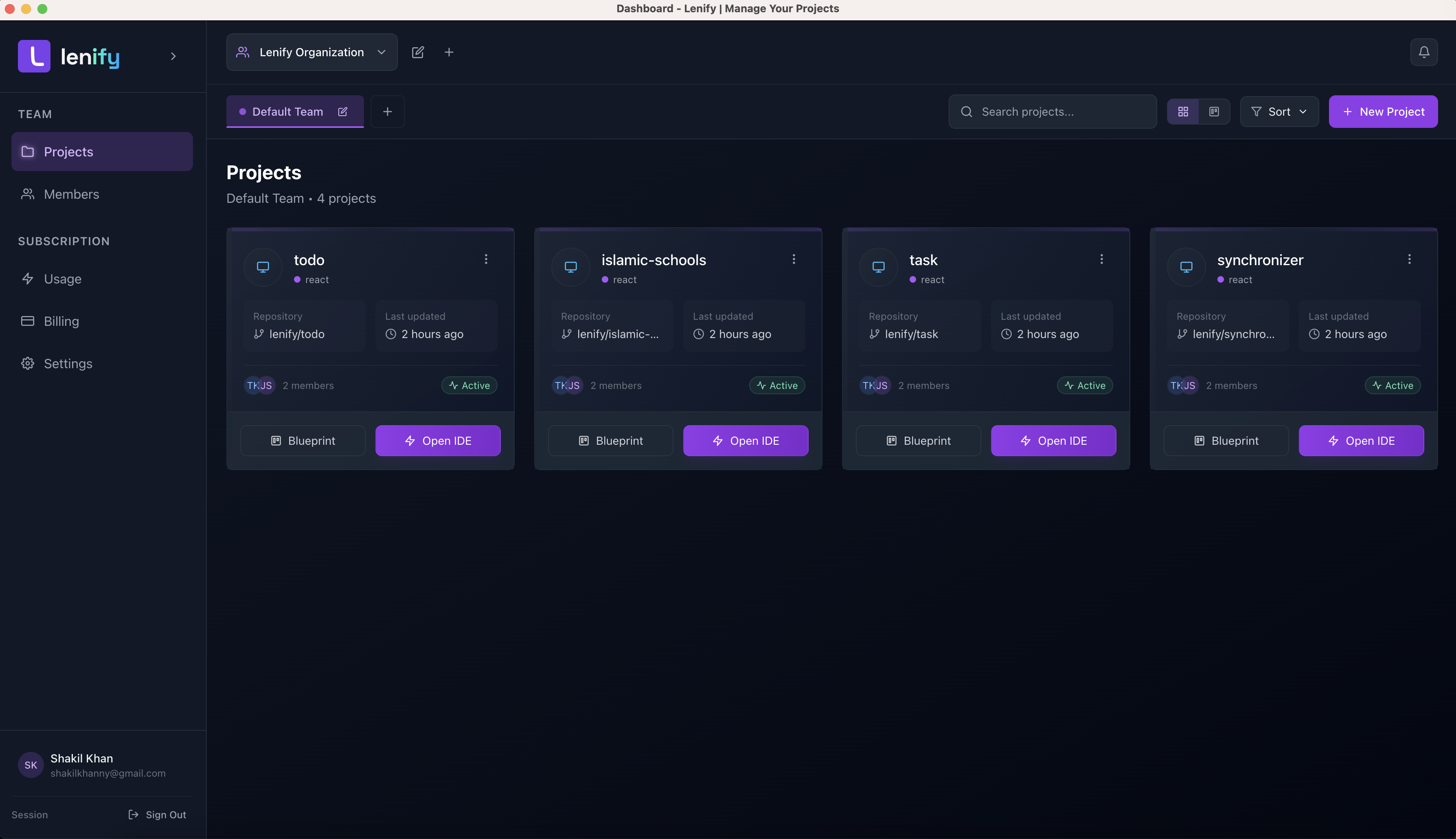 The main Lenify dashboard showing projects, team management, and usage analytics
Getting Started
First Login Experience
Upon first login, the dashboard provides guided onboarding:
- API Key Setup: Warning banner displayed if Anthropic API key is not configured
- Create First Project: Prominent call-to-action for initial project creation
- Team Setup: Add team members for Pro and Enterprise plans
- Billing Configuration: Set up payment methods and billing information
Navigation Structure
- Team Section: Projects and Members (when applicable)
- Subscription Section: Usage tracking and Billing management
- Account Section: Settings and profile configuration
- Organization & Team Selection: Switch between organizations and teams with role-based access
Dashboard Navigation & Features
Projects Tab - Project Management
Views & Organization:
- Grid View: Visual project cards with framework icons and status indicators
- List View: Detailed tabular format with sortable columns
- Search & Filter: Find projects by name, framework, or status
- Sorting: Order by last modified, name, or creation date
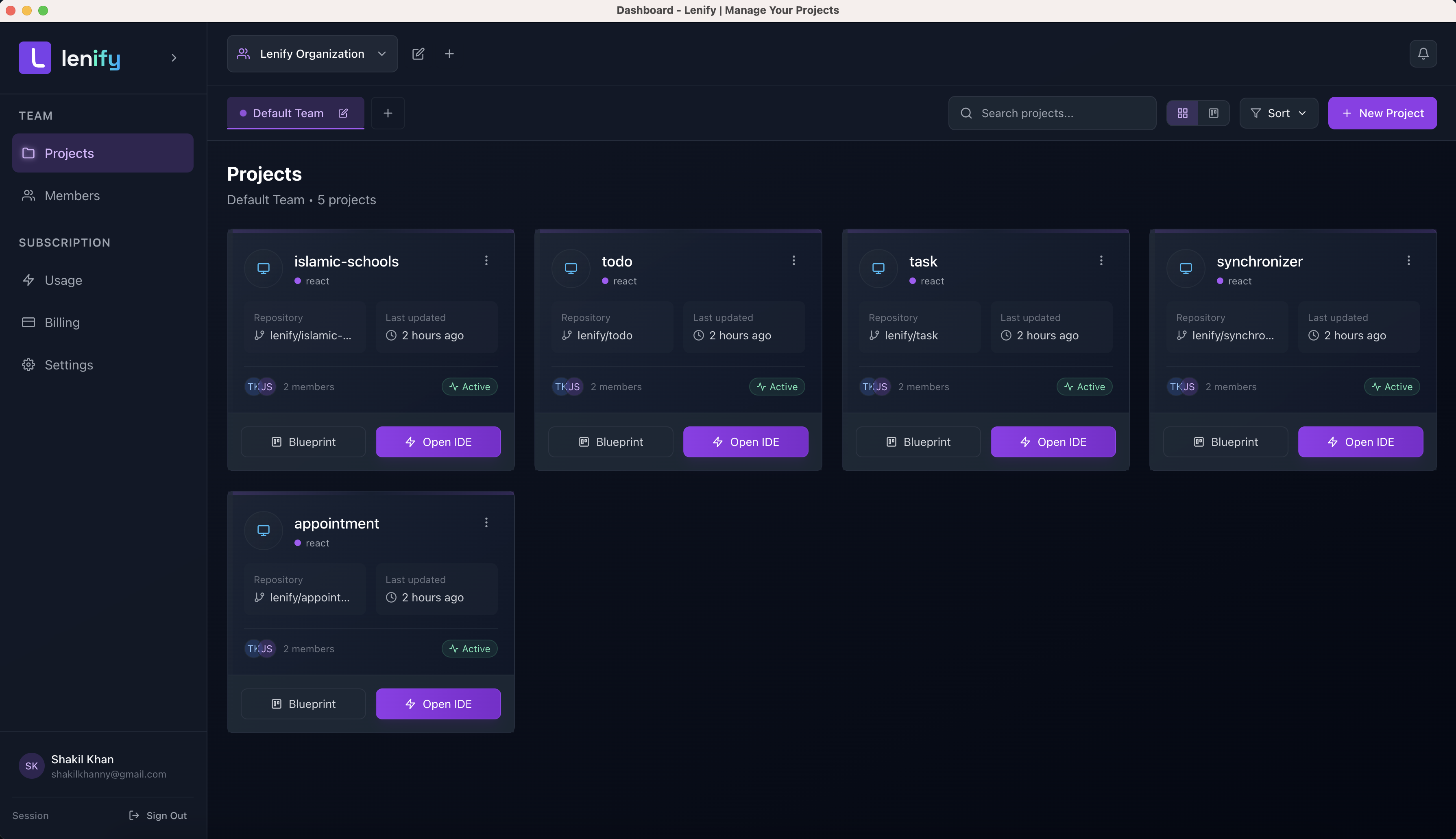 Projects tab showing grid view with project cards, search functionality, and framework indicators
Project Operations:
- Create New: Launch project creation modal with framework selection
- Edit Details: Modify project name, framework, and Git repository settings
- Open IDE: Direct access to the integrated development environment
- Quick Actions: Open IDE, edit details, or manage settings
- Status Management: Active/inactive toggle for project organization
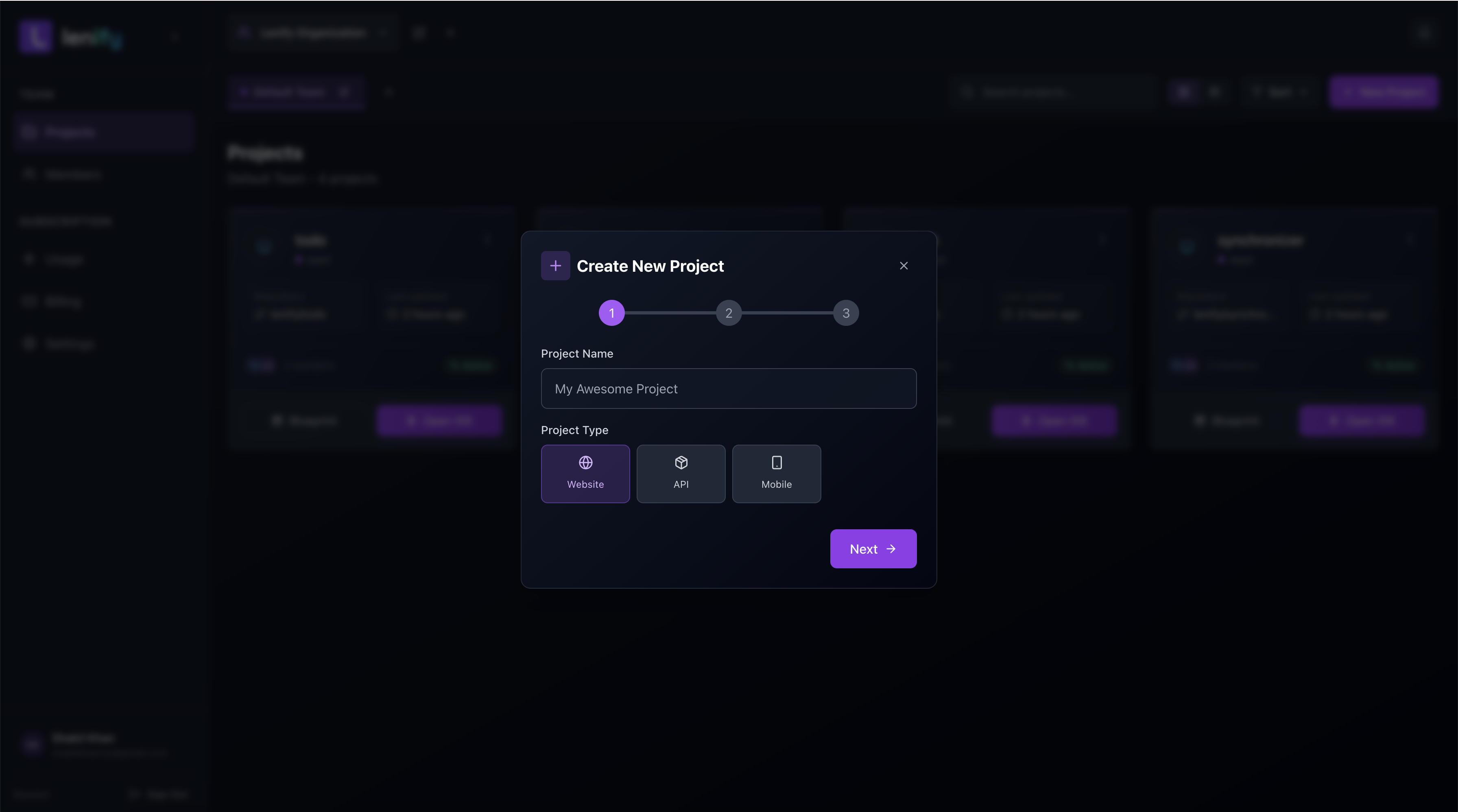 Project operations showing create new project modal, edit options, and IDE access buttons
Information Display:
- Project name, framework, and last modified date
- Real-time project status indicators
- Framework and technology stack display
- Team member assignments and access control
Members Tab - Team Collaboration (Pro/Enterprise Plans Only)
Member Invitation Process:
- Invite New Members: Click "Add Member" button to open invitation modal
- Email Input: Enter team member's email address for invitation
- Role Selection: Choose initial role (Admin or Developer) during invitation
- Invitation Delivery: System sends email invitation with signup/login link
- Account Creation: New users create accounts or existing users join team
- Automatic Assignment: Members gain access based on assigned role permissions
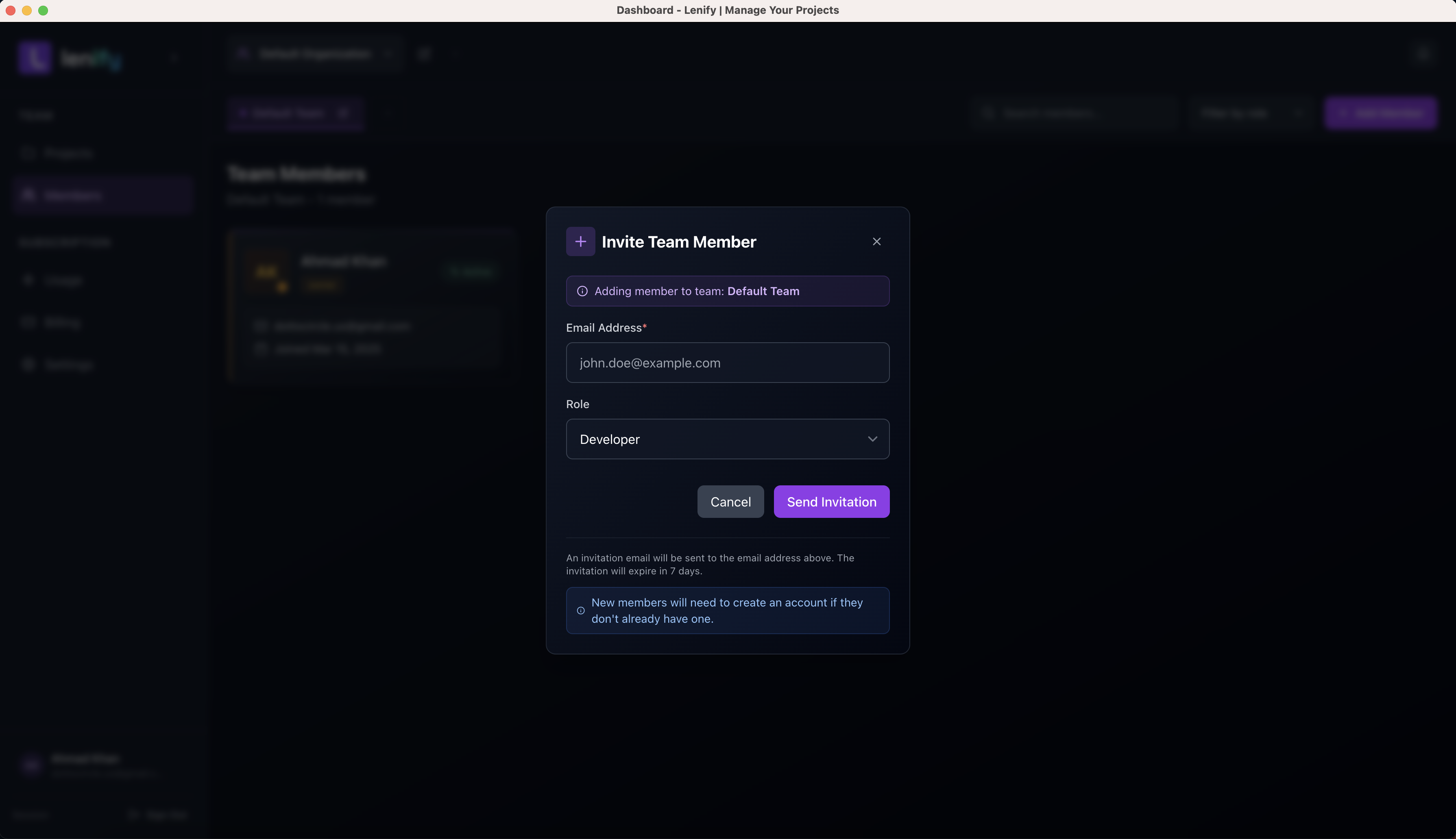 Member invitation modal showing email input, role selection, and invitation process
Team Management:
- Add Members: Invite team members via email
- Role Assignment: Owner, admin, and developer permissions
- Member Operations: Edit details, change roles, or remove members
- Organization: Assign members to specific projects
- Filtering: Search by name, email, or role
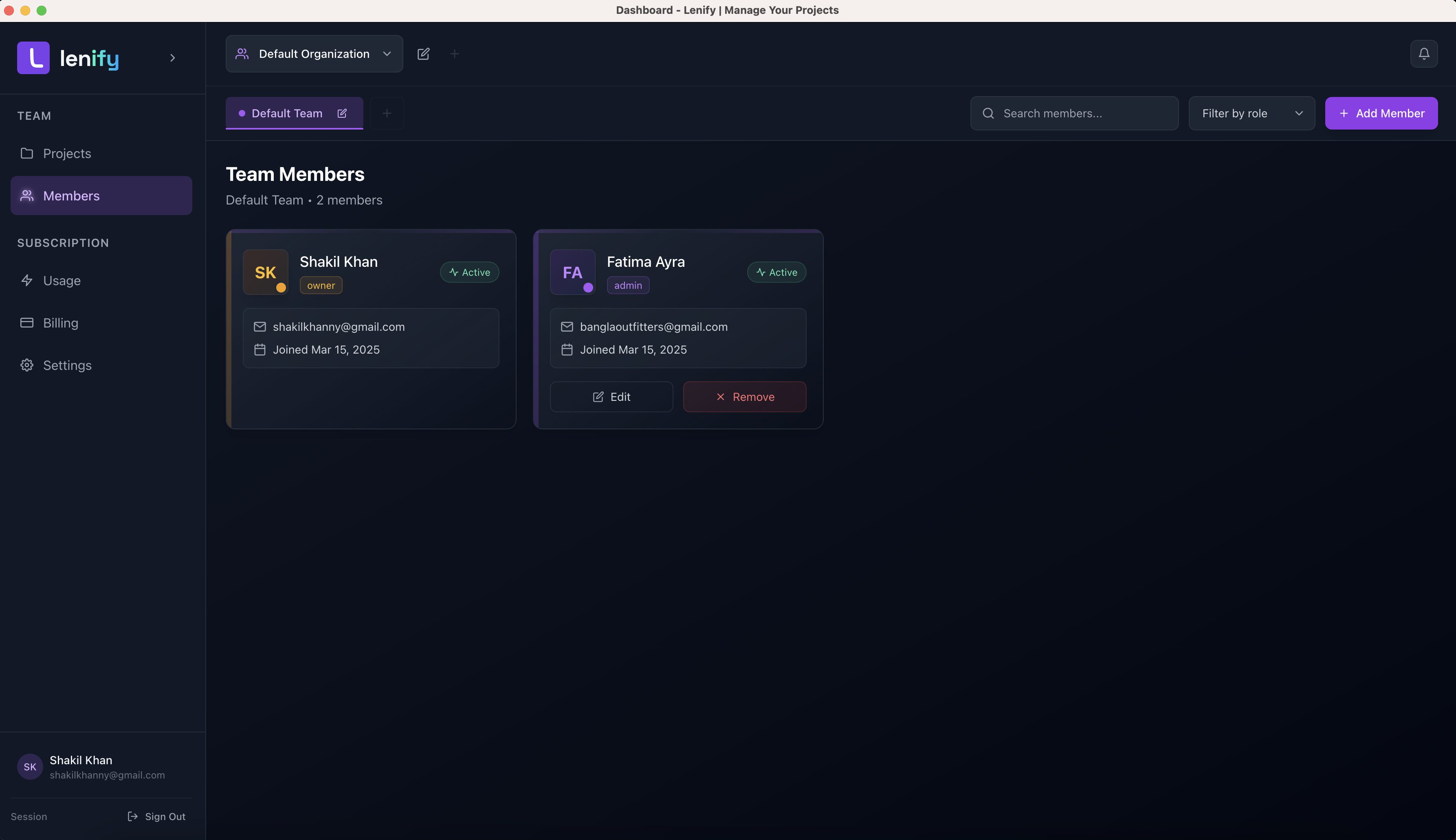 Team management view showing member list, role assignments, and management options
Permission System:
- Owner: Full organization, billing, and team management access
- Admin: Team management and project creation, no billing access
- Developer: Project access and collaboration, limited administrative functions
Access Control:
- Project visibility and editing permissions
- Role-based feature access throughout the platform
- Team organization and project assignment management
Usage Tab - Plan Monitoring
Current Usage Tracking:
- Organizations: Current vs. maximum organization limit with visual meters
- Teams: Active teams within plan limits
- Members: Total team members across all teams
- Projects: Project count against plan allowances
- Visual Indicators: Color-coded progress bars (green/yellow/red)
Subscription Information:
- Current plan tier and billing cycle
- Next renewal date and billing amount
- Plan upgrade options and direct access to subscription management
- Usage alerts and upgrade prompts when approaching limits
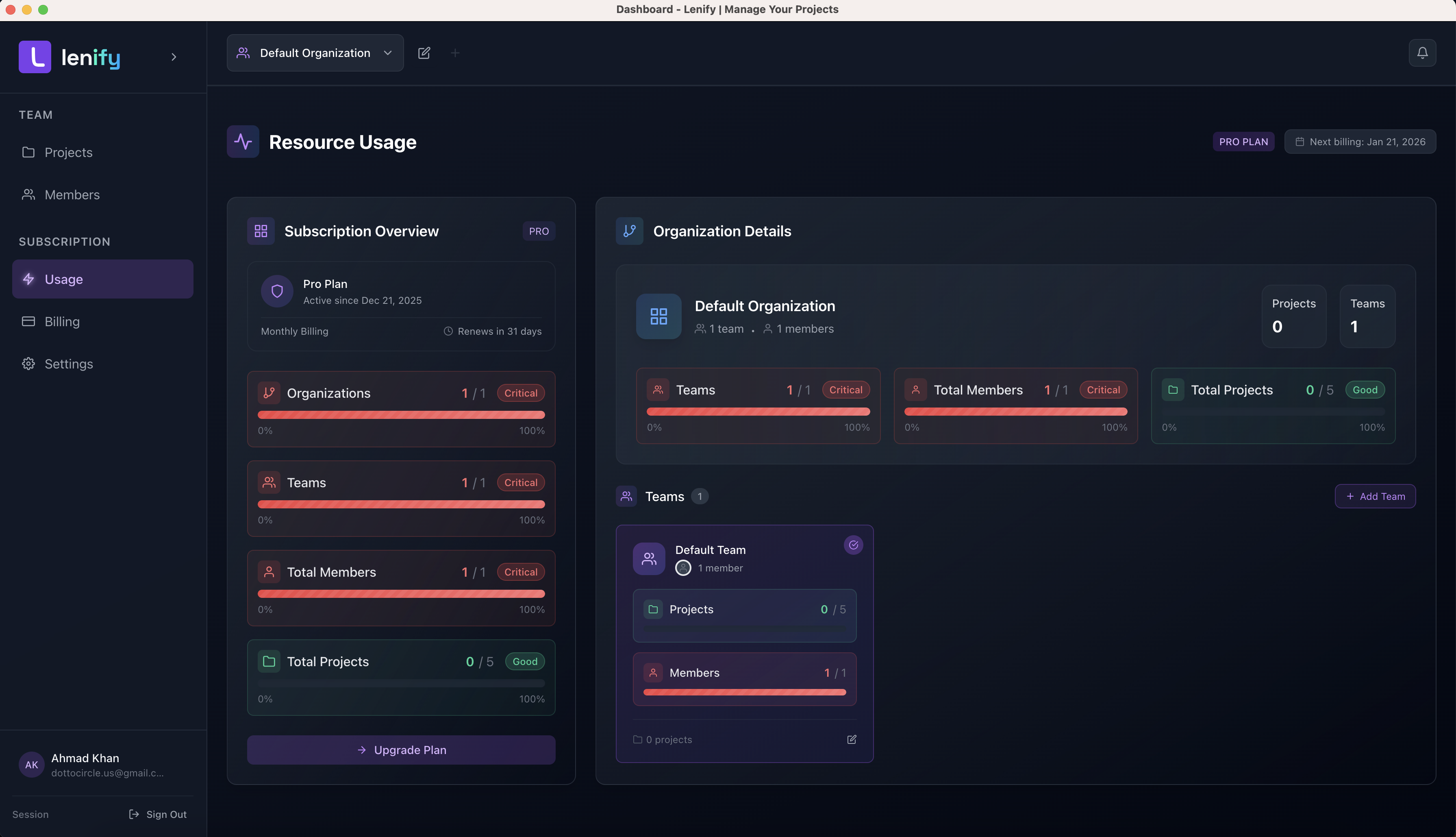 Usage tab showing plan limits, visual meters, and subscription information
Billing Tab - Payment Management (Owner/Admin Access Only)
Payment & Subscription:
- Overview: Current subscription status and billing information
- Payment Methods: Add, manage, and set default payment cards with Stripe integration
- Billing History: View and download invoices and receipts
- Plan Management: Upgrade subscription or modify team size
- Customer Profile: Billing address and contact information
Security & Compliance:
- Stripe integration for secure payment processing
- PCI-compliant payment method storage
- Encrypted billing information handling
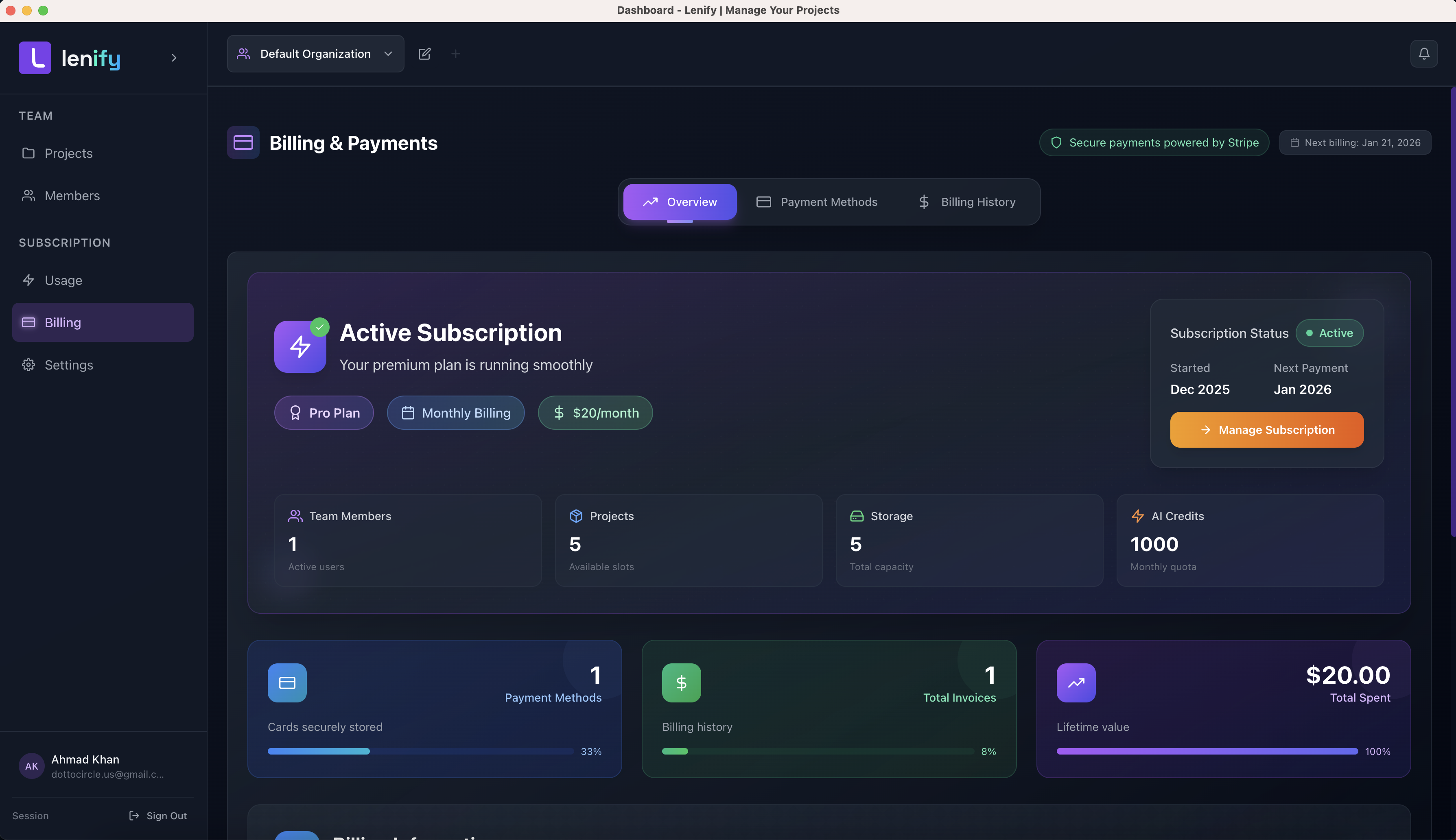 Billing tab showing payment methods, subscription details, and billing history
Settings Tab - Profile & Configuration
Profile Management:
- Customer Information: Name, email, and billing details
- Organization Details: Company name and contact information
- Address Management: Complete billing address configuration
- Account Security: Password and authentication settings
API & Integration:
- API Key Setup: Configure Anthropic API key for AI features
- Key Management: Secure storage, validation, and connection testing
- Usage Tracking: Monitor API key usage and credit consumption
- Key Rotation: Easy updates and management
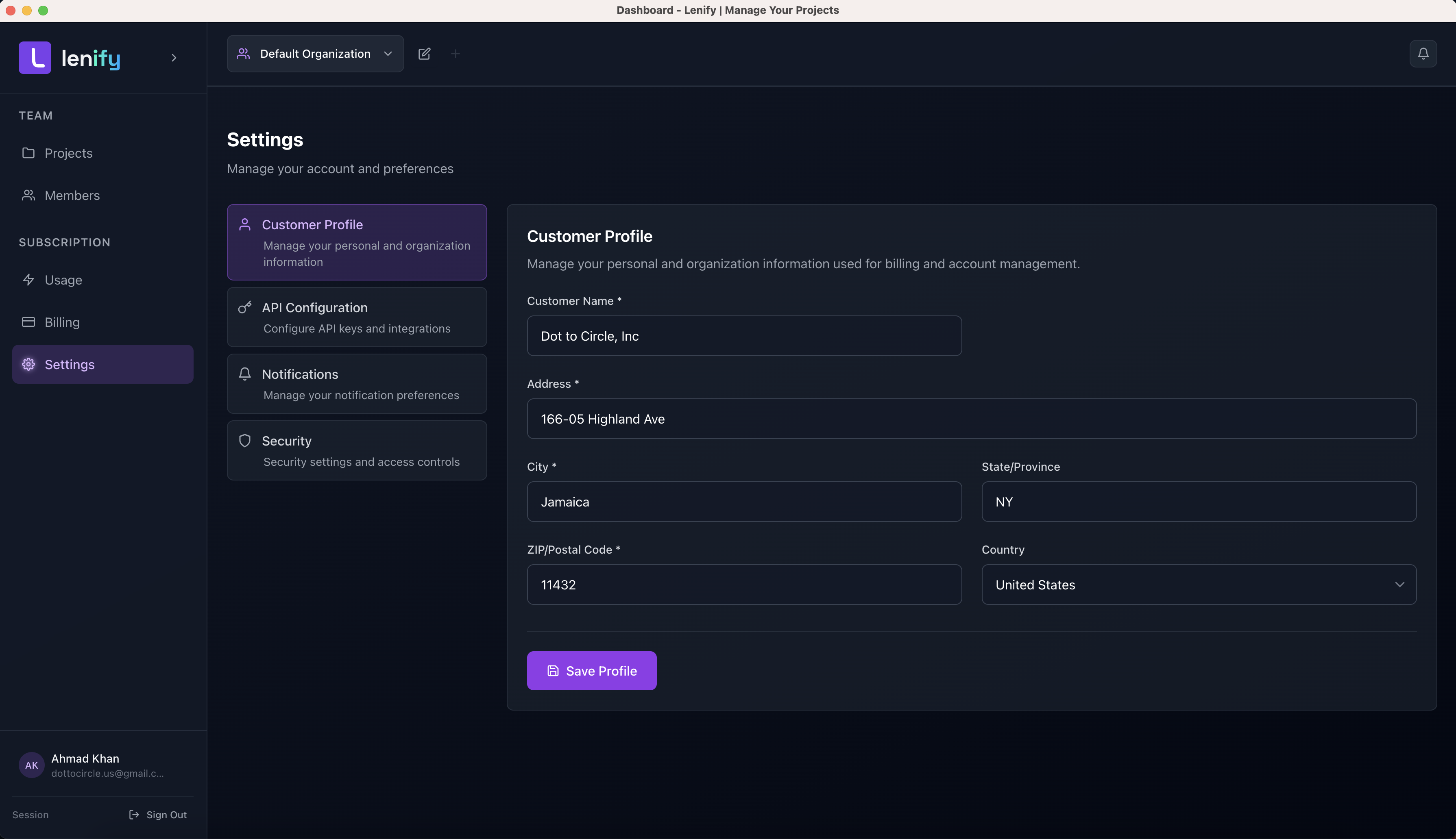 Settings tab showing profile management, API key configuration, and account settings
Role-Based Access
Access Levels
Different features are available based on your role within the organization:
Owner Permissions:
- Full access to all dashboard features
- Billing and subscription management
- Team member management and role assignment
- Organization settings and configuration
Admin Permissions:
- Team management and project creation
- Member role assignment (excluding owner role)
- Project management and IDE access
- No access to billing or subscription features
Developer Permissions:
- Project access and collaboration features
- IDE and development environment access
- Limited administrative functions
- No team management or billing access
Plan-Based Features
Certain features are restricted by subscription plan:
Free Plan:
- Basic project management
- Single user access
- Limited projects and organizations
Pro/Enterprise Plans:
- Team member management
- Advanced collaboration features
- Extended project limits
- Priority support and advanced features
Continue to API Key Setup to configure AI features.