API Key Setup
Configure your Anthropic API key to unlock Lenify's AI-powered development features including blueprint generation and code assistance.
Why You Need an API Key
Lenify uses your Anthropic API key to provide:
- Project Blueprint Generation: AI creates comprehensive project architectures
- AI-Powered Code Generation: Intelligent code suggestions and generation in the IDE
- Automated Error Detection and Fixing: Real-time debugging assistance
- AI Development Assistant: Context-aware guidance throughout your development process
Without an API key, Blueprint and Open IDE features will be disabled. You won't be able to create new projects or access AI-powered development tools.
Getting Your Anthropic API Key
Step 1: Access Anthropic Console
- Visit Console: Go to console.anthropic.com
- Account Setup: Sign up for a new account or sign in to existing account
- Billing Setup: Ensure your Anthropic account has billing configured
- Credit Balance: Verify you have available API credits
Step 2: Create API Key
- Navigate to API Keys: Find the API Keys section in the Anthropic console
- Create New Key: Click "Create Key" button
- Key Name: Give it a descriptive name (e.g., "Lenify Development")
- Copy Key: Copy your API key (format:
sk-ant-api03-...) - Store Securely: Save the key safely as it won't be displayed again
 Generate your Anthropic API key from the console for secure access to Claude models
Step 3: Verify Key Access
Ensure your API key has:
- Active Status: Key is not expired or disabled
- Sufficient Credits: Available balance for API requests
- Proper Permissions: Access to Claude models
- Rate Limits: Understanding of usage limitations
Configure API Key in Lenify
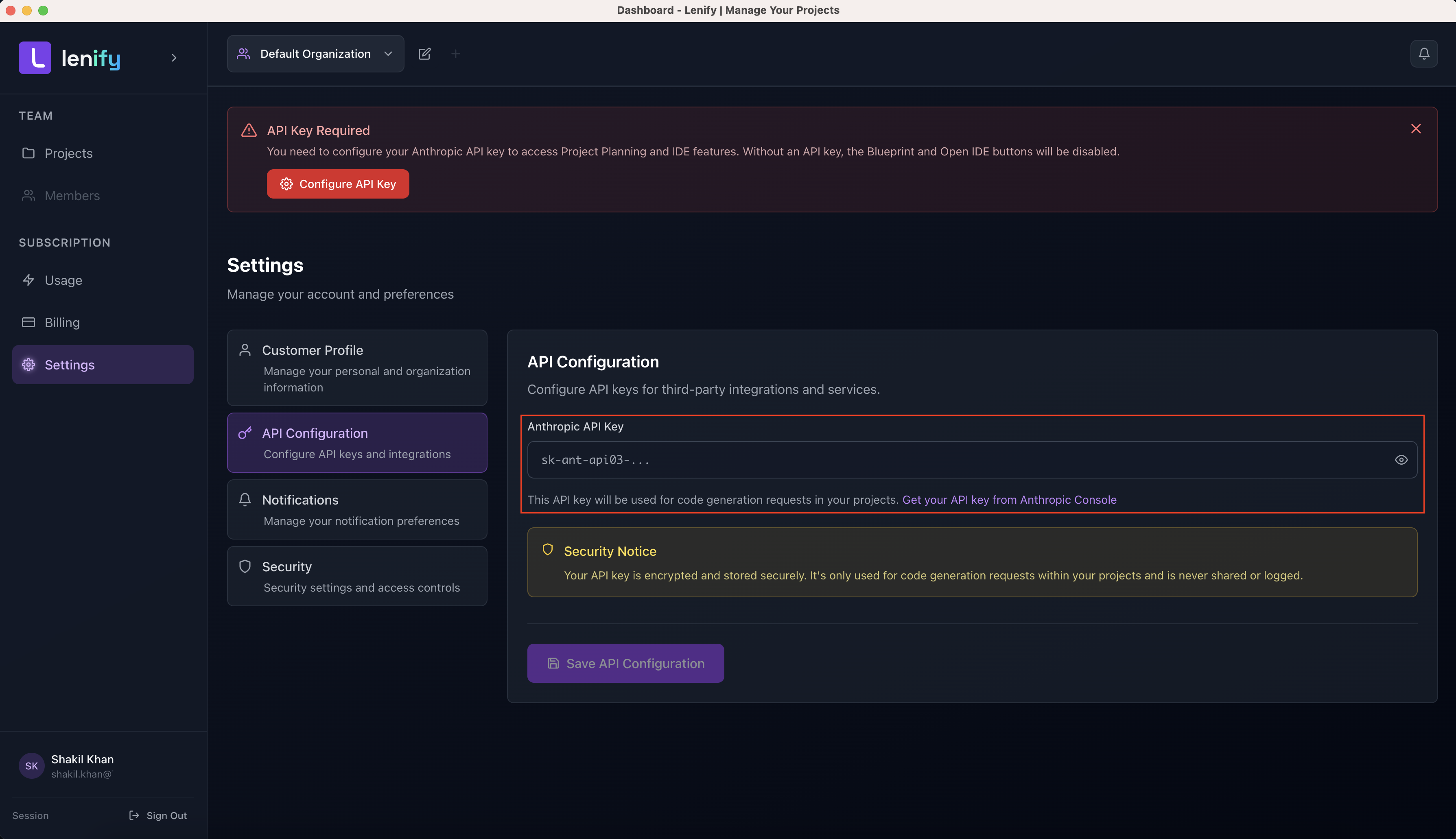
Method 1: API Key Warning Banner (Recommended)
For New Users: When accessing your dashboard without an API key:
- Notice Banner: Red warning banner appears stating "API Key Required"
- Click Configure: Click "Configure API Key" button in the banner
- Auto Navigation: Automatically redirects to API Configuration section
Method 2: Manual Navigation
Via Settings Menu:
- Open Settings: Click profile icon in top-right corner
- Select Settings: Choose "Settings" from dropdown menu
- API Configuration: Navigate to "API Configuration" in left sidebar
- Setup Process: Follow configuration steps below
API Key Configuration Interface
New API Key Setup
Configuration Steps:
- API Key Input: Password-masked input field for security
- Show/Hide Toggle: Eye icon to toggle key visibility while typing
- Enter Key: Paste your Anthropic API key (
sk-ant-api03-...format) - Save Configuration: Click "Save API Configuration" to store securely
Input Validation:
- Format Check: Validates proper Anthropic key format
- Length Verification: Ensures complete key was entered
- Character Validation: Confirms valid characters and structure
Existing API Key Management
For Previously Configured Keys:
- Status Indicator: Green "API Key Configured" indicator shows active key
- Update Option: Click "Update Key" to replace existing key
- Key Replacement: Enter new API key to replace current one
- Secure Update: Old key is securely removed when new one is saved
Configuration Verification
Automatic Testing:
- Format Validation: Ensures key matches Anthropic's format requirements
- Authentication Test: Verifies key works with Anthropic's API endpoints
- Permission Check: Confirms key has necessary permissions for Lenify features
- Rate Limit Check: Tests basic API access and response
Security Features
Data Protection
Lenify ensures maximum API key security:
- Encryption at Rest: Keys encrypted before database storage
- Secure Transmission: HTTPS encryption for all API communications
- No Display Policy: Full API keys never displayed after saving
- No Logging: API keys never logged or exposed in system logs
- Limited Access: Keys only used for authenticated AI requests within projects
Privacy and Compliance
Security Standards:
- Zero Trust Architecture: No unnecessary access to API keys
- Audit Logging: All API key operations logged for security
- Data Isolation: Your keys isolated from other users
- Compliance: Meets enterprise security and privacy requirements
Your API key is encrypted and stored securely. It's only used for code generation requests within your projects and is never shared or logged.
Troubleshooting
Common Issues
Invalid Format Error:
- Ensure you copied the complete key starting with
sk-ant-api03- - Check for extra spaces or characters
- Verify no truncation occurred during copy/paste
Authentication Failed:
- Confirm key is active in Anthropic Console
- Check if key has been revoked or expired
- Verify Anthropic account has active billing
Insufficient Credits:
- Check credit balance in Anthropic Console
- Add credits to your Anthropic account
- Verify billing information is up to date
Getting Help
Support Resources:
- Check Anthropic documentation for account issues
- Contact Lenify support for configuration problems
- Use in-app help for step-by-step guidance
- Review error messages for specific resolution steps
Future AI Model Support
Expanding Model Support
While Lenify currently supports Anthropic's Claude models exclusively, upcoming features include:
Coming Soon:
- OpenAI GPT Models: GPT-4, GPT-3.5-turbo, and future releases
- Google Gemini: Gemini Pro and Gemini Ultra models
- Grok (xAI): Advanced reasoning and conversation models
- DeepSeek: Specialized coding and analysis models
Multi-Model Benefits:
- Choose optimal models for specific development tasks
- Compare outputs across different AI systems
- Fallback options for service availability
- Cost optimization based on model pricing and capabilities
Configuration Updates
Planned Enhancements:
- Multi-provider API key management
- Model selection per project or task type
- Usage analytics across different AI providers
- Cost tracking and optimization recommendations
Verification and Next Steps
Once your API key is successfully configured:
✅ API Authentication - Key validated and ready for use
✅ AI Features Enabled - Blueprint generation and IDE tools active
✅ Project Creation Ready - Full AI assistance available for new projects
✅ Development Unlocked - All Lenify AI-powered features accessible
Your API key is configured and Lenify's AI-powered development tools are fully activated. You can now create projects with complete AI blueprint generation!
Continue to Dashboard Overview to customize your environment, or proceed to Create Project to start building with AI assistance.